Broadcast templates are pre-designed message formats used to send messages to multiple customers at once via WhatsApp.
These templates must be created and approved by Meta before they can be used. This ensures that the messages comply with WhatsApp’s policies and are not considered spam.
WhatsApp Template Message Categories #
Currently, the WhatsApp message template category in Layanika is limited to marketing , which is used to promote products or services to customers.
Template Updates by Meta #
1. Automatic Category Updates
: On the first day of each month, Meta will notify users of any miscategorized marketing or utility templates that will be updated on the first day of the following month. Learn more.
- Monthly NotificationsOn the first day of each month, Meta will notify users of any miscategorized marketing or utility templates that will be updated on the first day of the following month. Learn more.
- Request a ReviewMeta also provides an option to request a review of affected templates if users believe that a specific template category should not be updated. Learn more.
2. Template Updates by Meta
WhatsApp enforces per-user limits on how many marketing templates a person can receive from a business. This limit is designed to maintain a healthy engagement ecosystem and is managed by WhatsApp (Meta).
This limit applies regardless of how marketing templates are sent, including through the Inbox, Workflows, Broadcasts, or API-based integrations.
How these limits work:
- WhatsApp adjusts marketing template limits based on user engagement.
- If users do not respond to marketing messages, WhatsApp may temporarily block further marketing templates.
- These limits apply only to new marketing conversations, not ongoing ones.
- If a user responds to a marketing message, a 24-hour customer service window will be opened.
3. When Marketing Templates Are Not Delivered
- The contact is located in a paused or restricted country (e.g., the United States or numbers starting with +1).
- The contact is located in a paused or restricted country (e.g., the United States or numbers starting with +1).
- Multiple marketing templates have been sent without any user response.
In these cases, the message may fail with an error such as:
This message was not delivered to maintain healthy ecosystem engagemen, or appear as not delivered.
What You Can Do
If a marketing template is not delivered:
- Wait at least 24 hours before sending it again, or
- Wait for the user to respond, which will open a 24 hour customer service window
To reduce delivery issues:
- Send marketing templates only to engaged users.
- Avoid sending repeated messages to users who do not respond.
Preparing Message Templates #
Template Creation Guidelines
There are several guidelines that must be followed when creating message templates to increase the chances of approval by Meta.
1. Content Restrictions
The following types of content are not allowed in message templates:
- Threatening content
- Data collection requests
- Prohibited services
- Contests or quizzes
2. Template Formatting Rules
Ada aturan pemformatan untuk setiap bagian template pesan.
- Nama: Karakter alfanumerik huruf kecil dan underscore. Karakter khusus dan spasi lainnya tidak diizinkan.
- Body: Must not contain tabs or more than four consecutive spaces, and is limited to 1,024 characters. This includes letters, numbers, special characters, and emojis.
- Placeholders: Must be written using double curly braces, like this: {{1}}. When customizing placeholder content, you may include letters, numbers, or special characters.
Template Message List Table #
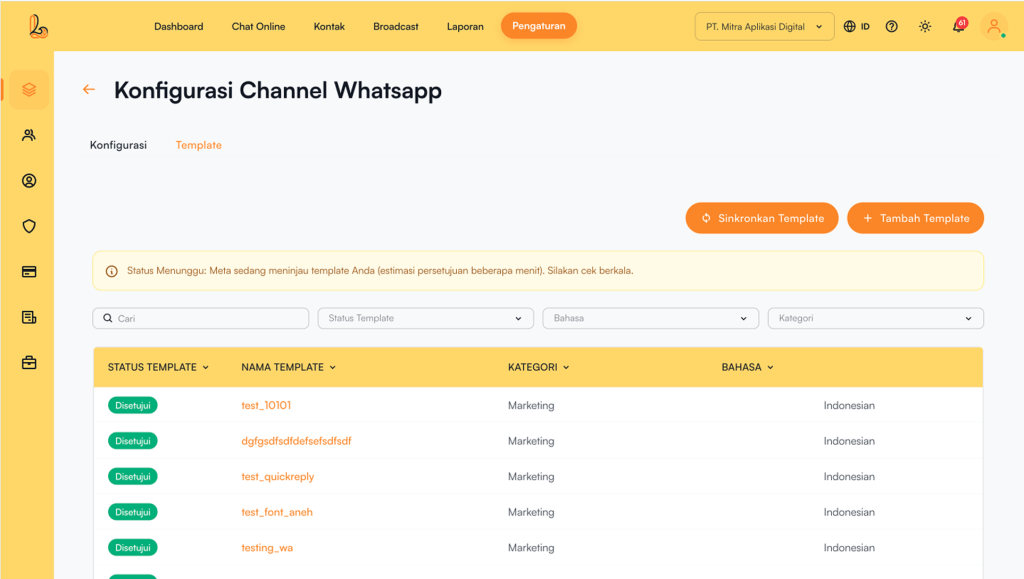
| Colom | Description |
|---|---|
| Template Status | Indicates the current status of the template |
| Template Name | Displays the name of the template |
| Category | Indicates the template category |
| Language | Indicates the language of the template |
Creating and Sending Template Messages #
Before creating a template, make sure you have connected your WhatsApp channel to Layanika. If not, please follow this guide:Cara Menghubungkan WhatsApp.
Step 1:
Go to the Settingsmenu, then select Channel. Choose the WhatsApp channel you want to use, then click the Manage button. You will be directed to the WhatsApp channel configuration page. Next, click the Template tab next to the configuration tab. Then, click Template tab next to the configuration tab, then click the Add Template button located at the top right corner.
Step 2:
Create a message by filling in the required components:
| Input | Description |
|---|---|
| Variable | Berisi teks terpenting pada template anda. Hanya teks yang didukung. Anda dapat menggunakan markdown untuk memformat konten blok ini |
| Title | Header bersifat opsional dan berfungsi sebagai judul atau header template anda. Mendukung hal berikut:
|
| Category | Indicates the template category |
| Language | Indicates the language of the template |
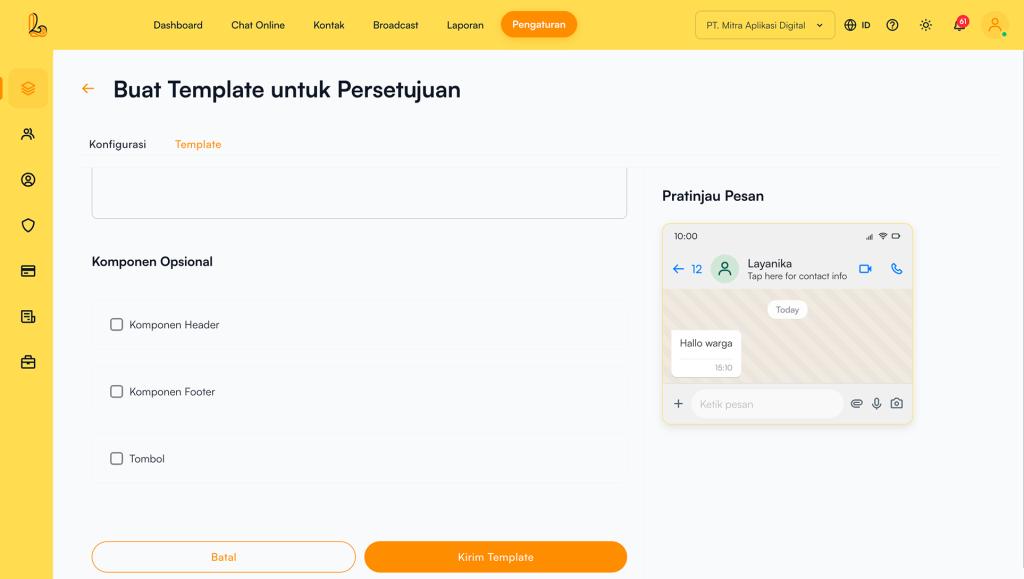
Step 3:
Anda dapat melihat contoh jika anda telah menyertakan parameter apa pun dalam konten template pesan anda. Klik Submit Template to send your template for approval.
Message Template Synchronization #
The purpose of synchronizing your message templates on the platform is to retrieve the latest template status.
Berikut panduan untuk menyinkronkan template pesan anda
Step 1:
Go to the Settingsmenu, then select Channel. Choose the WhatsApp channel you want to use, then click the Manage You will be directed to the WhatsApp Channel Configuration. Klik tab Template tab located next to the configuration tab.
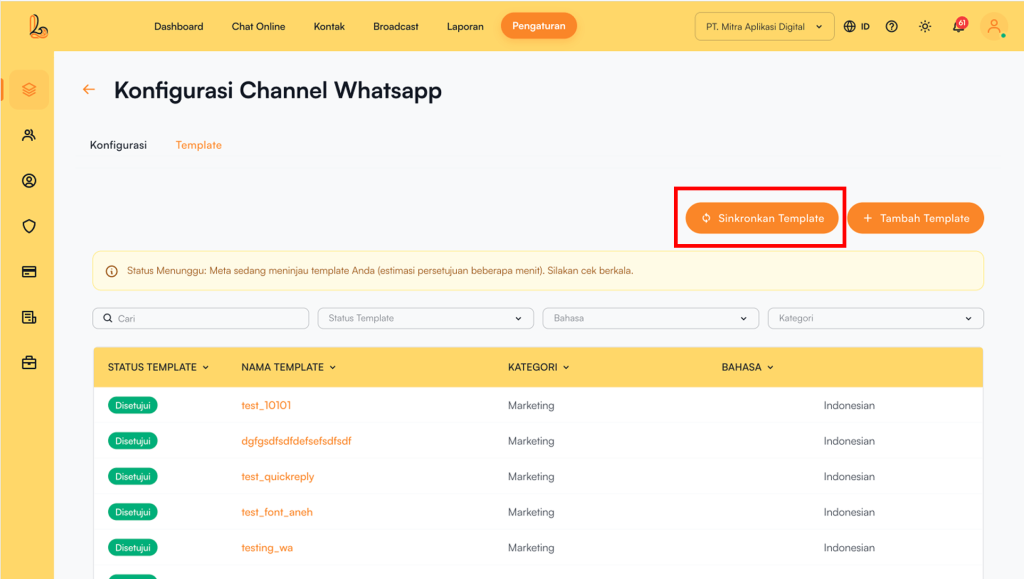
Step 2:
Click Sync Templates located to the left of the Add Template.
The table below lists the possible statuses for message templates:
| Status | Description |
|---|---|
| Approved | Template pesan disetujui dan dapat dikirim ke Kontak |
| Rejected | Template pesan ditolak dan tidak dapat digunakan |
| Pending | Template pesan telah dikirimkan dan menunggu persetujuan |
Template Review Status: Rejected After Submission #
Meta determines the template category based on its content and the applicable template category.
There are several reasons why your message template may not be approved by Meta:
- Technical issues: Ensure your message template is properly formatted and does not contain any technical errors.
- Inappropriate language or tone: Avoid using offensive, abusive, or spam-like language.
- Violation of Meta Commerce Policies: Pastikan template pesan anda mematuhi Meta Commerce Policies, including guidelines related to spam and prohibited products or services.
Sending Template Messages #
Before sending a template message, make sure your template has been approved by Meta.
Below is a guide on how to send your WhatsApp template message:
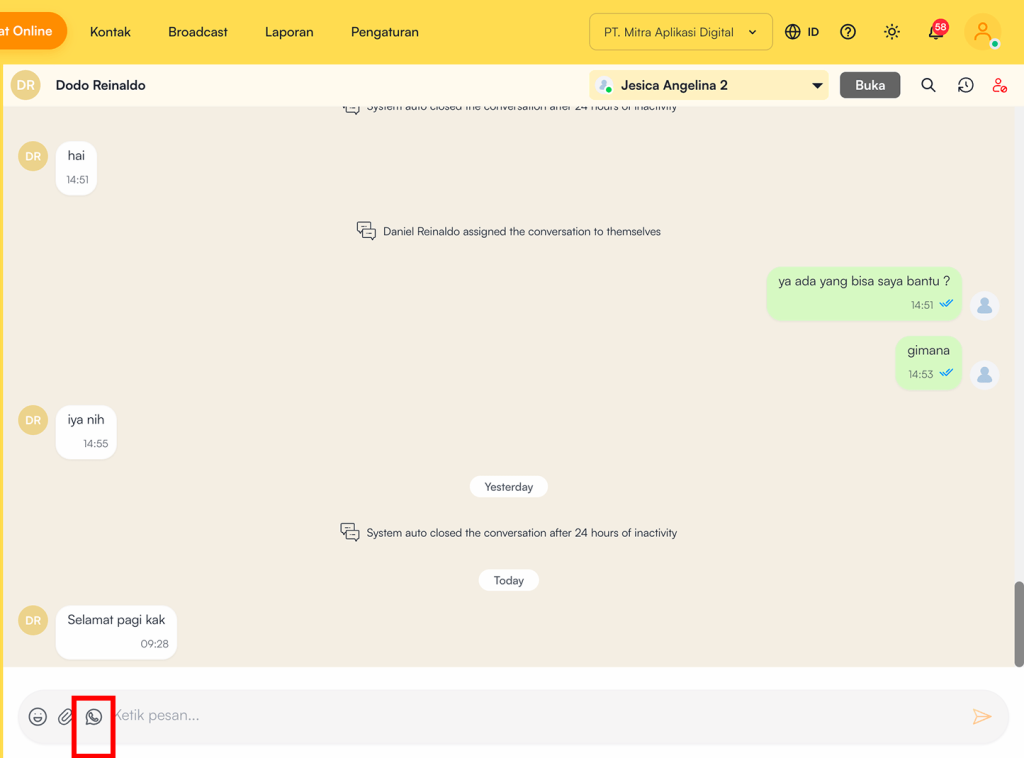
Step 1:
Click Message Template located to the right of the media send option on the chat bar.
Step 2:
Select a template to send to your contact. Customize the message and define the required parameters. You can use dynamic variables to fill in the placeholders, such as {{1}}, {{2}}, and so on. Review the information, then click Send Message.