


The Broadcast menu helps users deliver important information—such as promotions and service announcements—to multiple customers at once.
To view and filter your broadcasts, use the message status filters on the right.
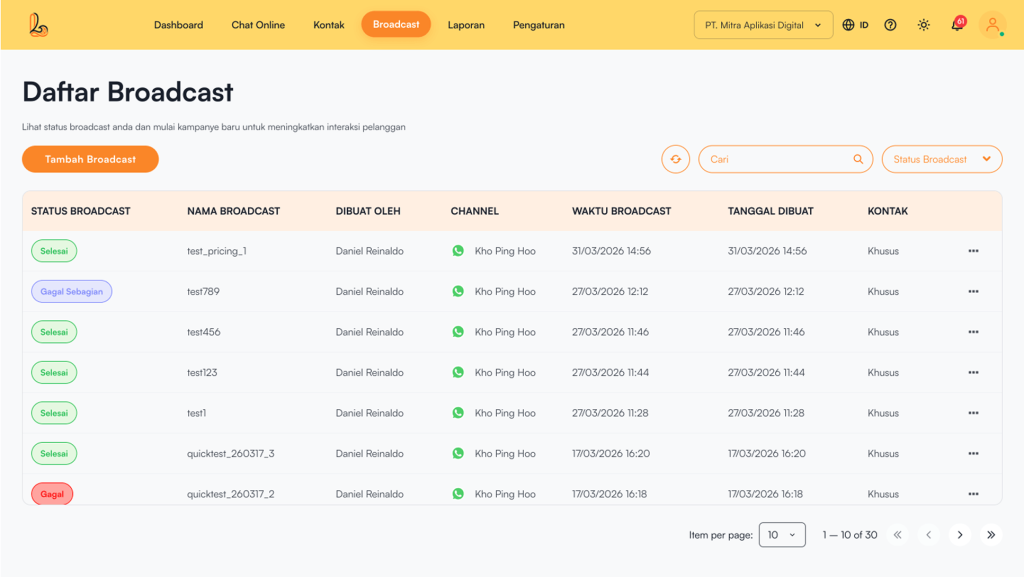
Broadcast statuses are divided into several categories:
| Broadcast Status | Description |
|---|---|
| Draft | The broadcast is still being prepared and has not been sent yet. You can still edit or complete the broadcast details |
| Scheduled | The broadcast has been scheduled and will be sent automatically based on the specified date and time |
| On Going | The broadcast sending process is in progress. Messages are being sent gradually to contacts. |
| Completed | The broadcast has been successfully delivered to all target contacts without any issues. |
| Partially Failed | Some messages were successfully delivered, but a few failed to reach certain contacts |
| Failed | Broadcast gagal dikirim sepenuhnya. Tidak ada pesan yang berhasil dikirim ke target kontak |
The Broadcast List includes :
| Colom | Description |
|---|---|
| Broadcast Status | Menunjukkan status pengiriman broadcast |
| Broadcast Name | Displays the name of the created broadcast message |
| Created By | The user who created the broadcast |
| Channel | The channel used (e.g., WhatsApp) |
| Broadcast Time | The scheduled or actual sending time |
| Created Date | Created Date |
| Contact | The target contacts for the broadcast |
| More | menampikan lihat, mengubah dan menghapus broadcast |
Broadcast Details #
Users can view broadcast details from the Broadcast menu.
Below is a guide to viewing broadcast information:
Step 1:
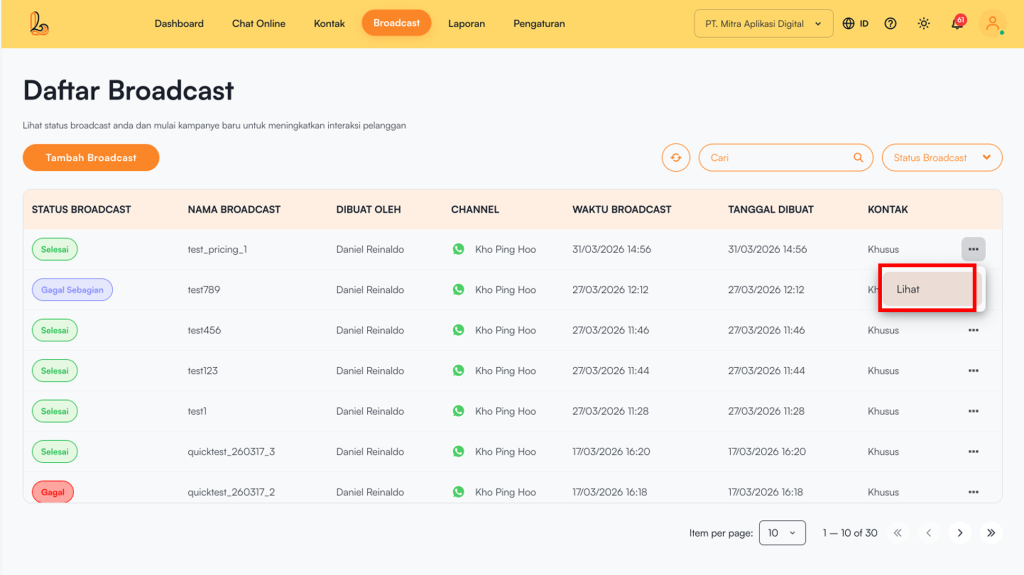
Select a broadcast from the broadcast list, then click view located on the right side of the Contact column to see the broadcast details.
Step 2:
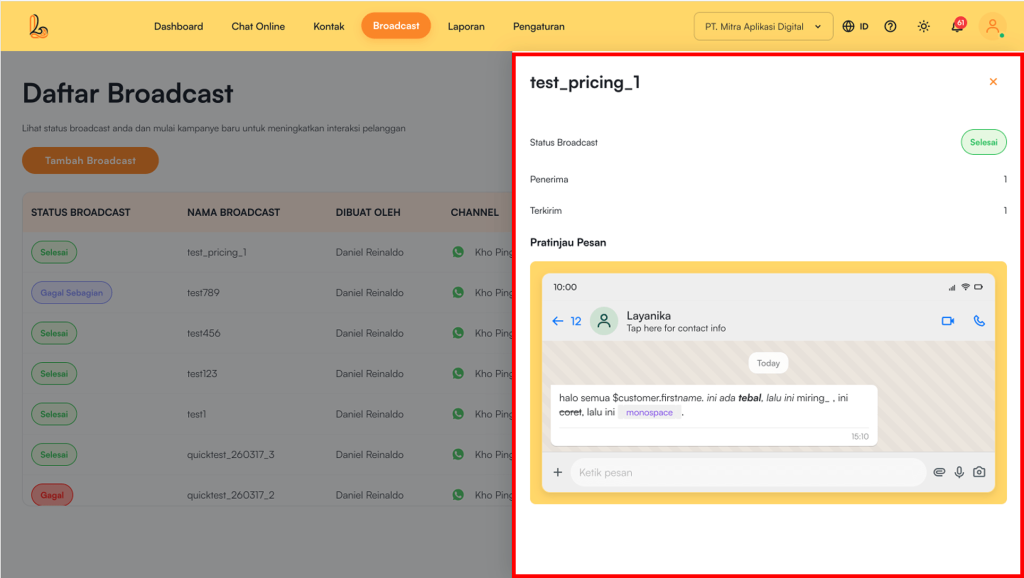
Sistem akan mengarahkan anda pada halaman Broadcast Details. Pada halaman ini, Anda dapat melihat ringkasan dan hasil dari broadcast yang telah dikirim.
The Broadcast Details page includes the following information:
| Information | Description |
|---|---|
| Broadcast Name | Menampilkan nama pesan broadcast yang telah dibuat |
| Broadcast Status | Menunjukkan status pengiriman broadcast |
| Recipients | The total number of contacts targeted by the broadcast |
| Sent | Jumlah pesan yang berhasil dikirim ke penerima |
| Message Preview | Anda dapat melihat tampilan pesan yang dikirim ke pelanggan |
Delete Broadcast #
Users can delete broadcasts that are no longer needed.
Broadcast hanya dapat dihapus pada status broadcast berikut:
- Draft
- Failed
Broadcasts with other statuses cannot be deleted because they are either in progress or have already been completed.
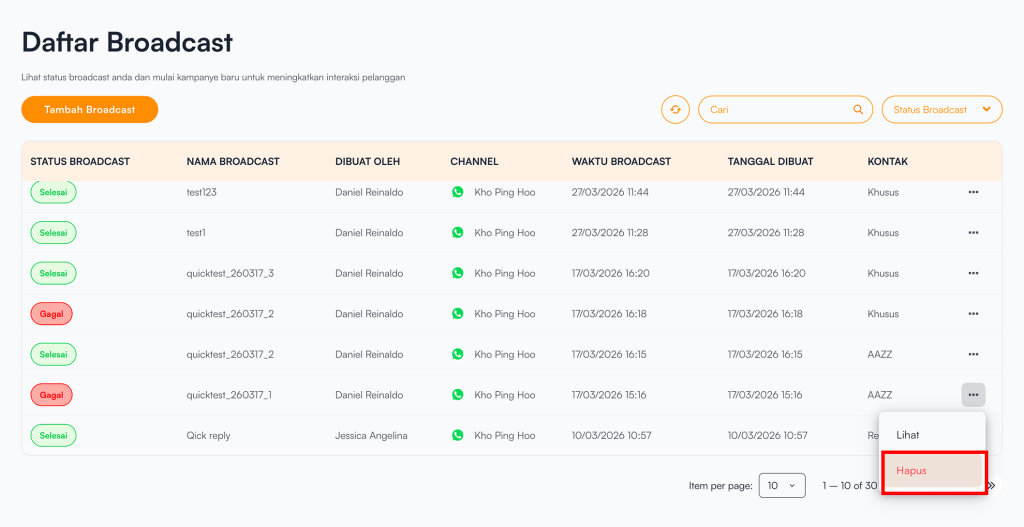
Berikut panduan cara menghapus broadcast:
Step 1:
Select the broadcast you want to delete from the broadcast list, then click hapus located on the right side of the Contact to delete the broadcast.
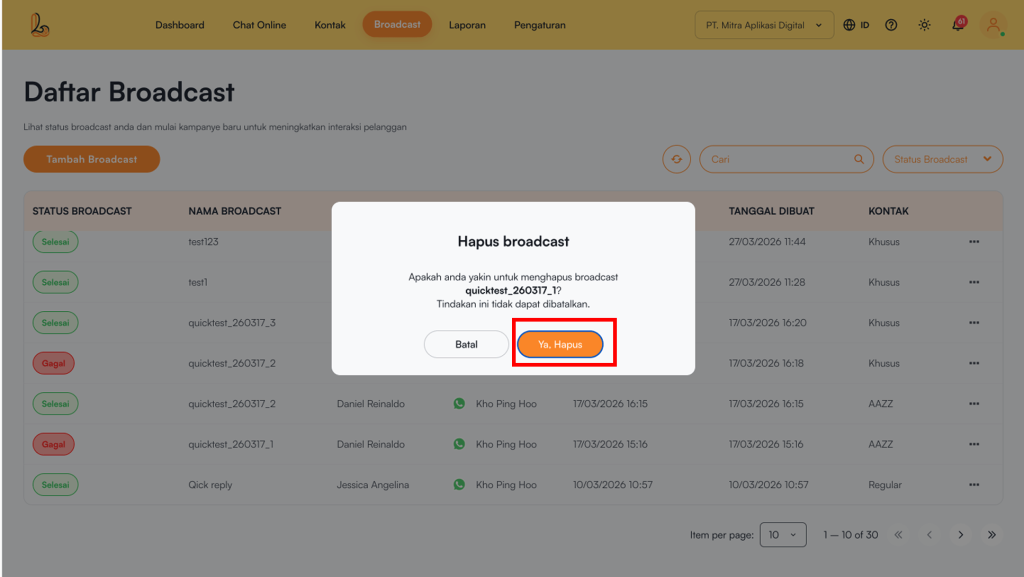
Step 2:
Setelah itu, sistem akan mengirimkan konfirmasi apakah pengguna yakin untuk menghapus broadcast. Klik Yes, Delete to delete the broadcast.