

Instagram is a social media platform that allows users to share content such as photos and videos, as well as interact with others through features like comments, likes, and direct messages.
When you connect your Instagram channel to Layanika, Instagram provides several features to help both existing and potential customers easily access your profile or inbox and send you direct messages.
How Customers Can Send Messages #
Instagram offers several ways to help customers find you on the app and start a conversation:
Chat Link: This is an https://ig.me/m/username URL that you can add to your website or newsletters. When customers click the link, they will be redirected to your Instagram inbox to start a conversation with you.
QR Code: QR codes can be placed in physical locations such as hotels, restaurants, or malls. When customers scan the code, they will be directed to your Instagram inbox to start chatting with you.
Chat Plugin: This allows customers to send messages directly through a chat widget on your website.
Supported File Types #
The following file types are supported by Instagram, along with their maximum file sizes:
Image (up to 8 MB)
Video (up to 25 MB)
Pesan Suara (up to 25 MB)
Message Status Availability #
The table below outlines the availability of message statuses in Instagram.
| Message Status | Availability |
|---|---|
| Sent | ✅ |
| Delivered | ✅ |
| Read | ✅ |
| Failed | ✅ |
Getting an Instagram Business Account #
Preparing Instagram for Connection #
To create an Instagram Business Account, you need to either create a new Instagram account or use an existing one.
Step 1:
Switch your Instagram account to a Business Account.
Follow the guide to convert your Instagram account into a business account.
Step 2:
Follow the guide to mengizinkan akses ke instagram.
Connect Your Instagram Business Account to the Instagram Channel in Layanika #
Follow the steps below to connect your Instagram Business Account to the Instagram channel in Layanika:
Step 1:
Go to the Settingsmenu, then select Channel.
Step 2:
Click add channelthen select instagram.
Step 3:
Click Connect With Instagram then log in to your Instagram account.
Step 4:
Grant the necessary permissions to allow access to manage your account.
Channel Configuration #
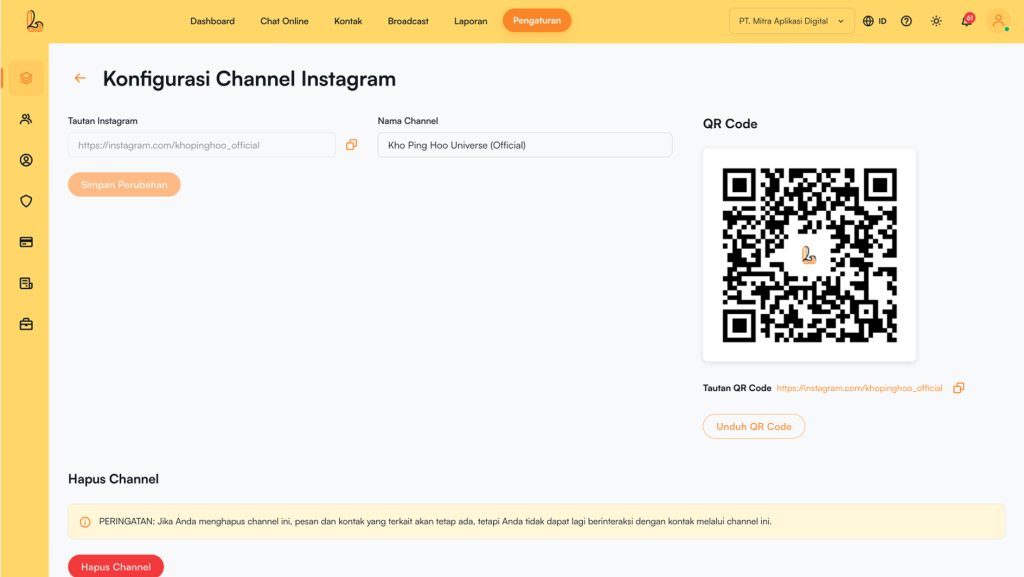
Instagram Configuration page allows you to edit the channel name and provides a chat link and QR code to help customers start conversations with you.
Step 1:
Go to the Settingsmenu, then select Channel. Find your Instagram channel, then click Manage
Step 2:
On Instagram Configuration page you will see the following:
- Channel Name: The channel name can be edited and is used internally to identify the channel.
- Instagram Link: The Instagram link is a short URL that directs customers to start or continue a conversation with your Instagram account. Customers will be redirected to a new or existing thread depending on whether they have previously messaged your Instagram account.
- Qr Code: You can use the QR code to share the chat link with your contacts by clicking Download QR Code.
Delete Instagram Channel #
You can remove the Instagram channel from Layanika. Below is a guide on how to delete the channel:
Step 1:
Go to the Settings > Channel. Then Your Instagram Channel, then click Manage
Step 2:
On the Instagram channel configuration page, click Delete Channel. The system will display a confirmation prompt asking whether you want to remove the Instagram channel. If you are sure, click Yes, Delete.