


The Custom Field menu allows users to add additional information fields to customer contacts. This feature is used to store specific details that are not available in the main contact information fields.
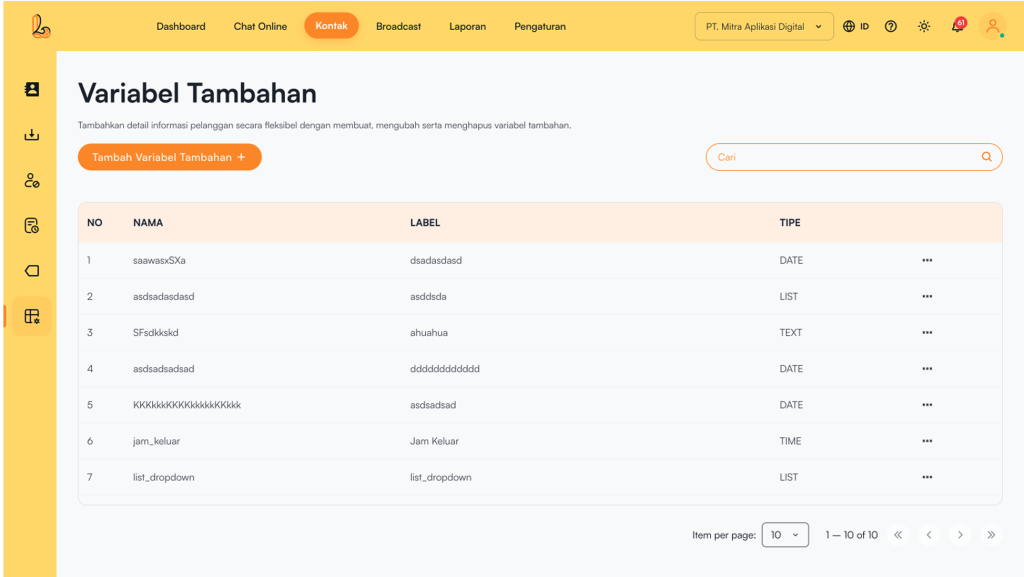
The Custom Field table includes the following:
| Colum | Description |
|---|---|
| Name | The variable name |
| Label | The name displayed in the UI |
| Type | The data type of the variable |
| More | Options to manage the variable (edit or delete) |
Variable Types #
Several variable types are available:
| Type Variabel | Description |
|---|---|
| Text | Input in the form of short text (e.g., name, city, etc.) |
| Number | Input in the form of numbers (e.g., age, number of transactions) |
| Date | Input in the form of a date (e.g., date of birth, booking date) |
| Time | Input in the form of time (e.g., reservation time) |
| List / Dropdown | Selection from predefined options |
| Checkbox | Selection using checkboxes (can select one or more options) |
| Website | Input in the form of a URL or website address |
| Textarea | Input in the form of long text (e.g., notes or additional information) |
a. Add Custom Field #
If you want to add additional field to a contact, you can create a new custom field.
Below is a guide to adding a new variable:
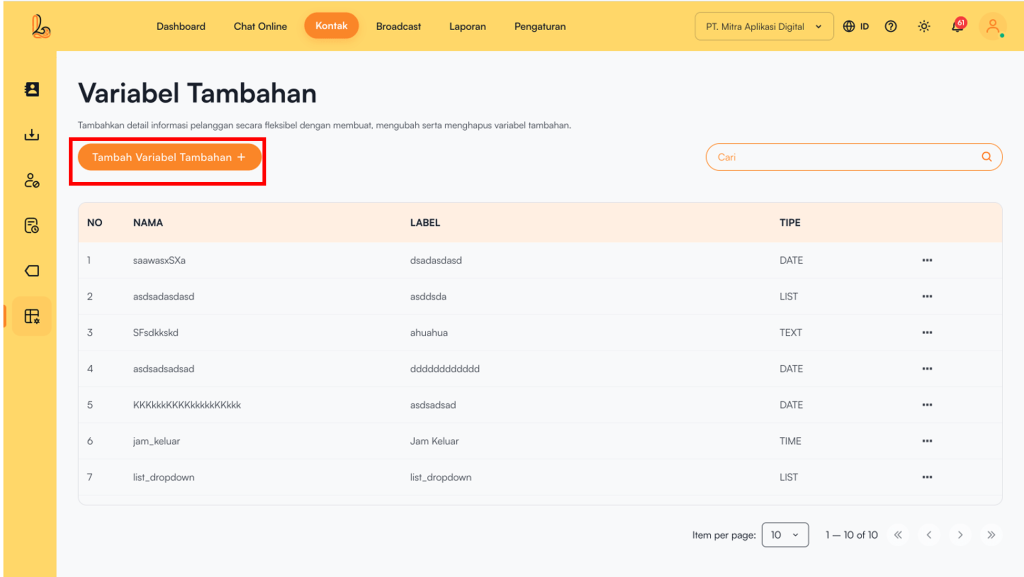
Step 1:
Menambahkan variabel tambahan dapat dilakukan dengan klik Add Custom Field located at the top right corner.
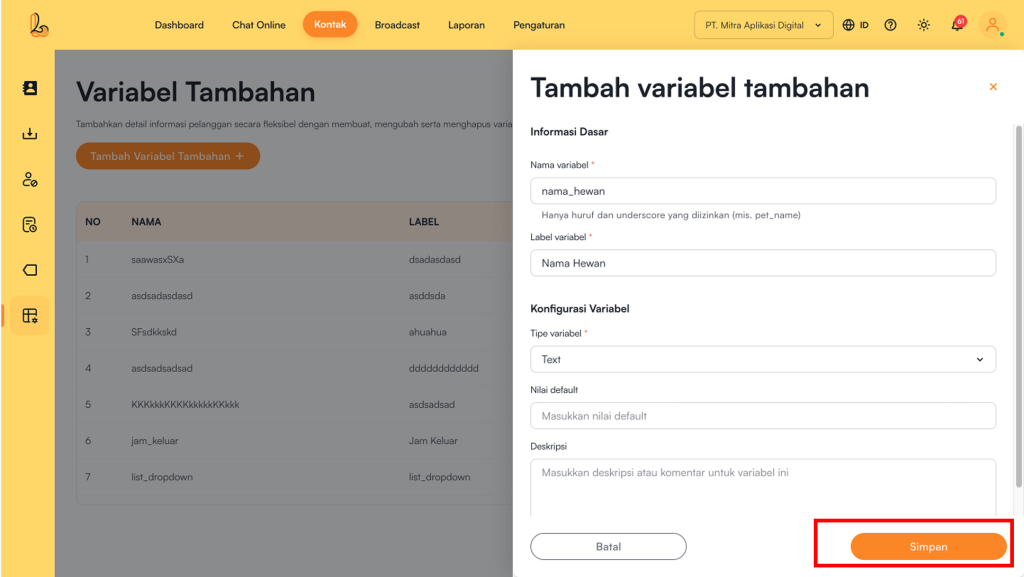
Step 2:
The system will then display the Add Custom Field Fill out the form to create a new custom field. The required information includes:
- Field Name (must use only letters and underscores, e.g., pet_name)
- Field Label (maximum of 50 characters)
- Description
- Field Configuration
The field configuration includes selecting the field type. Available types include:
- Text, Number, Checkbox, Website & Textarea:enter a default value
- Time: enter a default value in time format (e.g., 09:30)
- Date:
- Enter a default value in date format (e.g., 2024-01-15)
- You can enable a date range option (start & end) to limit selectable dates
- Minimum Date (to set the earliest selectable date):
- None: No minimum limit
- Today: Only allows selection starting from today
- Specific Date: Select a specific date as the minimum limit
- Maximum Date (to set the latest selectable date):
- None: Tidak ada batas maksimum.
- Today: Only allows selection starting from today
- Specific Date: Pilih tanggal spesifik sebagai batas maksimum.
Step 3:
Make sure all information is filled in correctly, then click Save.
b. Edit Custom Field #
Users can update the field's name, label, description, and type using the edit custom fieldoption. Any changes made will be automatically applied to all contacts that use this custom field. Below is a guide on how to edit a custom field:
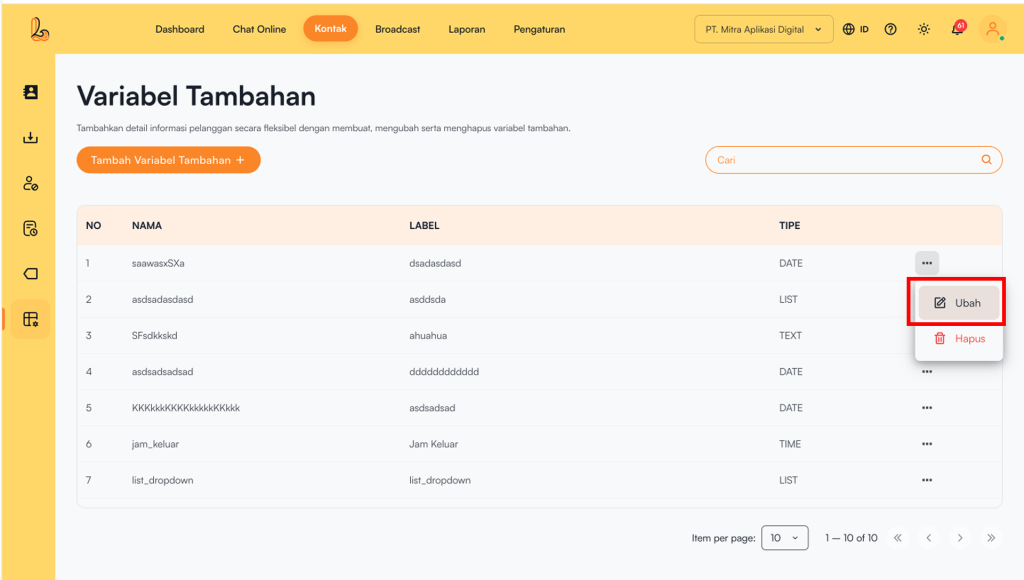
To edit a custom field, select the custom field you want to modify from the custom variables list, then click Updated . After making the necessary changes, click Save.
c. Delete Custom Field #
Users can delete custom field that are no longer relevant. This helps keep data organized and up to date.
Below is a guide on how to delete a custom field:
Step 1:
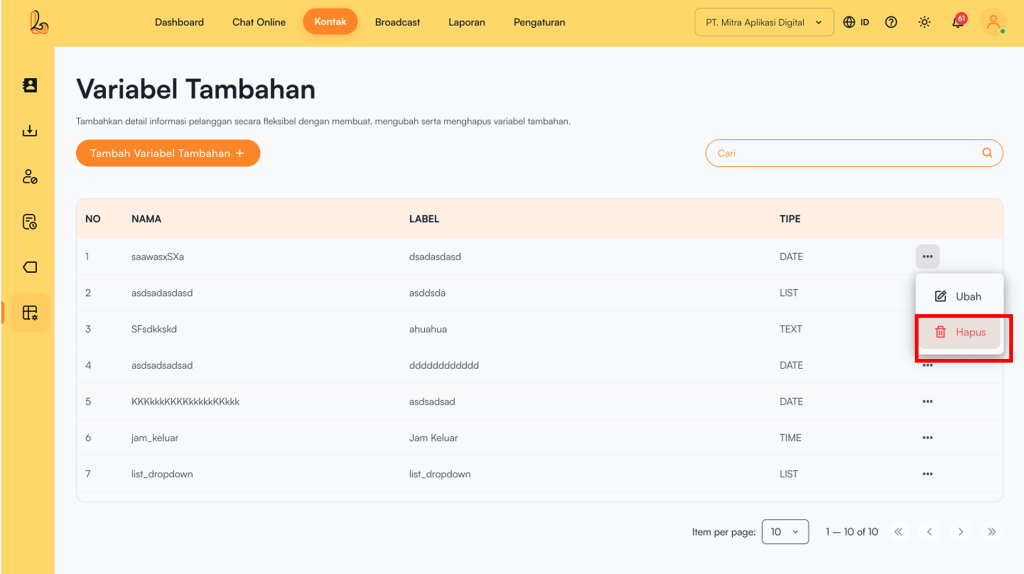
Select the custom variable you want to delete from the list, then click Delete to remove the custom variable.
Step 2:
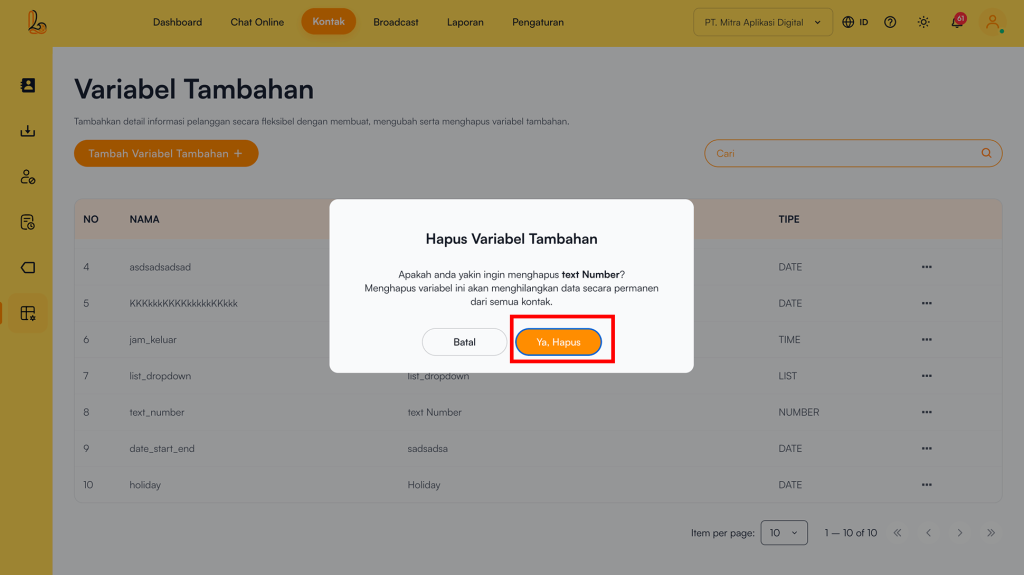
The system will display a confirmation prompt to ensure you want to proceed. Click Delete to permanently remove the custom variable.