


Tag adalah label atau penanda yang digunakan untuk mengelompokkan kontak atau percakapan dalam platform Layanika.
Dengan menggunakan tag, pengguna dapat mengorganisir data secara lebih terstruktur sehingga memudahkan pencarian, segmentasi, dan pengelolaan komunikasi.
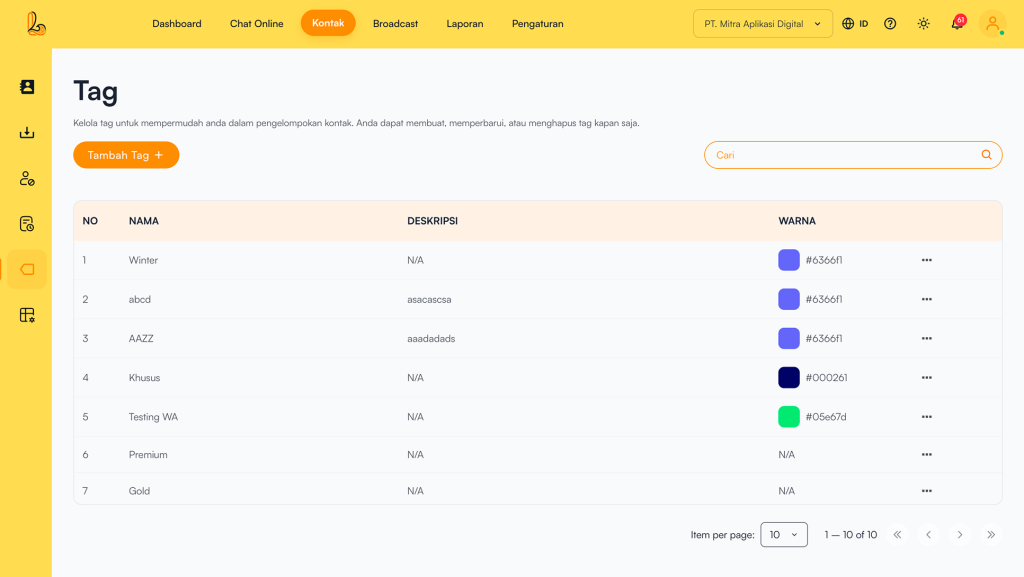
The Tag table includes the following:
| Colom | Description |
|---|---|
| Name | The tag name used to categorize contacts |
| Description | Additional explanation about the tag (optional) |
| Color | The tag’s color identity to help with visual recognition |
| More | Options to manage the tag (edit or delete) |
a. Add Tag #
To add a tag to a contact, users can create a new tag. Follow the steps below to add a new tag:
Step 1:
Menambahkan tag dapat dilakukan dengan klik tombol Tambah Tag yang terletak pada sebelah kiri atas.
Step 2:
The system will then display the Tambah Tag. page. Fill out the form to create a new tag. The required information includes:
| Input | Description |
|---|---|
| Tag Name | The tag name used to categorize contacts |
| Description | Additional explanation about the tag (optional) |
| Color | The tag’s color identity to help with visual recognition |
Step 3:
Make sure all information is filled in correctly, then click Save
b. How to Use Tags #
Users can apply created tags to customer contacts. Below is a guide on how to use tags on contacts:
To use a tag, click Add Contact located at the top right corner. The system will then display a form to enter detailed customer information. In the Tag field, select the tags you have previously created. You can assign more than one tag to a customer contact.
c. Edit Tag #
Users can update the tag’s name, description, and color. Below is a guide to editing an existing tag.
To edit a tag, select the tag you want to modify from the tag list, then click Edit .After updating the information, click Save.
c.Delete Tag #
Users can remove unused tags using the Delete Tag Delete Tag. option. This helps eliminate labels that are no longer relevant. Below is a guide on how to delete a tag:
To delete a tag, select the tag you want to remove from the tag list, then click Delete The system will display a confirmation prompt to ensure you want to proceed. If confirmed,click Yes, Delete.